
Create scannable barcodes in your browser
A barcode is a way to store a short piece of data — usually a number or a string of characters — as a pattern of black bars and white spaces that a scanner can read in a fraction of a second. The pattern is just a visual encoding of the digits underneath it. When a laser or camera scanner sweeps across the bars, it measures the widths and gaps, decodes them back into the original value, and hands that value to a checkout till, a warehouse system, or a shipping app. This barcode generator does exactly that encoding step: you type your text or numbers, pick a symbology, and the tool draws the matching stripes right in the page. Nothing is uploaded — the image is built in your browser and you can download it as a file ready to print or drop into a label template.

Barcode vs QR code: what is the difference?
People often lump barcodes and QR codes together, but they work differently. A traditional barcode is one-dimensional: it stores data along a single horizontal axis, which is why it looks like a fence of vertical lines. That limits how much it can hold — typically a product number or a short reference. A QR code is two-dimensional. It packs data into a square grid of cells, so it can carry far more: full URLs, contact cards, Wi-Fi credentials, or paragraphs of text. QR codes also include error correction, meaning they still scan when part of the image is smudged or torn. If you need to encode a website link or a lot of text, reach for our QR code generator instead. If you need a compact product or tracking number that a retail or warehouse scanner expects, a linear barcode is the right choice.
Common barcode symbologies in plain terms
A symbology is just the set of rules for how characters map to bars. A few show up far more often than the rest:
- Code 128 — the workhorse of logistics. It encodes the full set of letters, digits, and ASCII characters, so it handles batch numbers, expiry dates, serial numbers, and shelf locations with ease. It is high-density, meaning it fits a lot into a small space, and crucially it is free to use — no registration and no licensing fees. If you are making your own internal labels, Code 128 is usually the sensible default.
- EAN-13 — the 13-digit code you see on almost every supermarket product worldwide. It encodes numbers only and is part of the GS1 standard, so the prefix that identifies your company has to be obtained from GS1, often with a fee. You cannot just invent an EAN-13 for a product you intend to sell through retail channels; the number has to be assigned.
- UPC-A — the 12-digit cousin of EAN-13, used mainly in the United States and Canada. It is structurally very similar and also numeric-only and GS1-governed. Many scanners read both UPC and EAN interchangeably.
The practical rule of thumb: use Code 128 (or Code 39) for anything internal you generate yourself, and use EAN/UPC only when you have an officially assigned GS1 number for products that will pass through a retailer's checkout.
Where barcodes are used
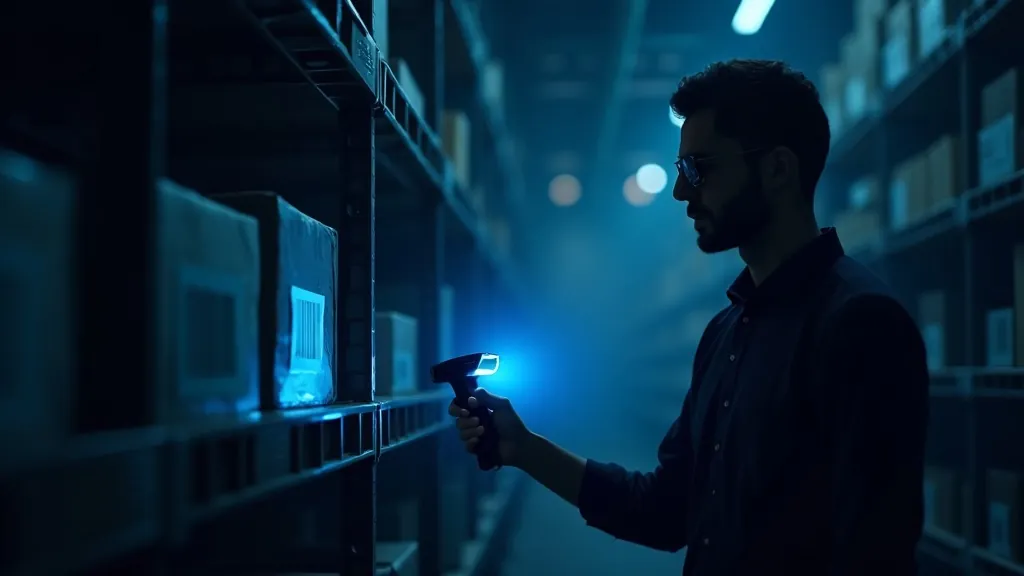
Barcodes quietly run a huge amount of everyday commerce. In retail, the EAN or UPC on a package lets a cashier ring up an item and update stock counts in one beep. In inventory and asset management, businesses print Code 128 labels for shelves, bins, tools, and equipment so a quick scan tells the system exactly what is where. In shipping and logistics, carriers and warehouses lean on Code 128 and GS1-128 to track cartons, pallets, and parcels through every handoff — the scan at pickup, sorting, and delivery all reference the same encoded number. Libraries, hospitals, ticketing, and manufacturing all rely on the same basic idea: turn a record in a database into a quick, error-free physical lookup.
Tips for printing scannable barcodes
Generating the image is easy; getting it to scan reliably takes a little care. Keep these in mind:
- Leave the quiet zone. Scanners need blank margin on the left and right of the bars — usually about ten times the width of the narrowest bar. Crowding text or a border up against the code is the most common cause of failed scans.
- Print in true black on white. High contrast matters. Avoid coloured or glossy backgrounds, and never shrink a barcode so far that the bars merge when printed.
- Do not stretch it. Scale the barcode proportionally. Distorting the width changes the bar ratios and can make it unreadable.
- Use enough resolution. Print at 300 DPI or higher so thin bars stay crisp. A downloaded vector or large PNG holds up far better than a tiny screenshot.
- Test before you commit. Print one label and scan it with a real scanner or phone app before running a batch of hundreds.
When you are ready, type your value above, choose Code 128 or EAN, and download the image. For other handy tools, browse our all generators collection.
Frequently asked questions
Is this barcode generator free to use?
Yes. You can create and download as many barcodes as you like at no cost. The image is generated in your browser, so nothing is sent to a server.
What is the difference between Code 128 and EAN-13?
Code 128 encodes letters, digits, and symbols and is free to use for internal labels. EAN-13 holds 13 digits only, follows the GS1 standard, and needs an officially assigned company prefix for retail products.
Can I make a barcode for a product I want to sell in shops?
To sell through retailers you need an official EAN or UPC number registered with GS1. You can encode that number here, but the number itself must be assigned to you rather than invented.
Should I use a barcode or a QR code?
Use a linear barcode for short product or tracking numbers that retail and warehouse scanners expect. Use a QR code when you need to store a web link or a larger amount of text.
Why does my printed barcode fail to scan?
The usual causes are no quiet zone margin, low contrast, distorted scaling, or printing too small. Keep clear space around the bars, print true black on white at high resolution, and test before printing a batch.
What image format can I download?
You can download the generated barcode as an image file ready to print or place into a label template. Print it at 300 DPI or higher for the best scan reliability.